


System Reports
|
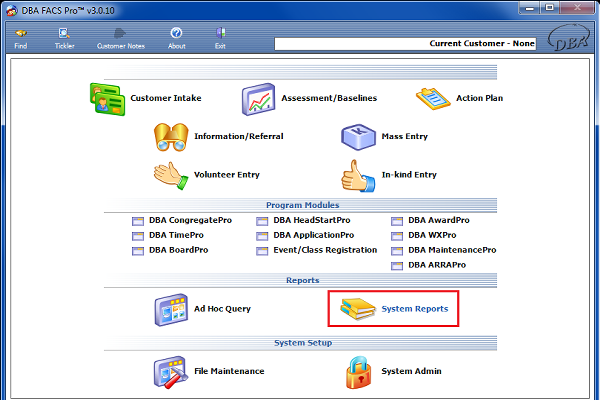
Click the System Reports icon. |
Agency Reports
|
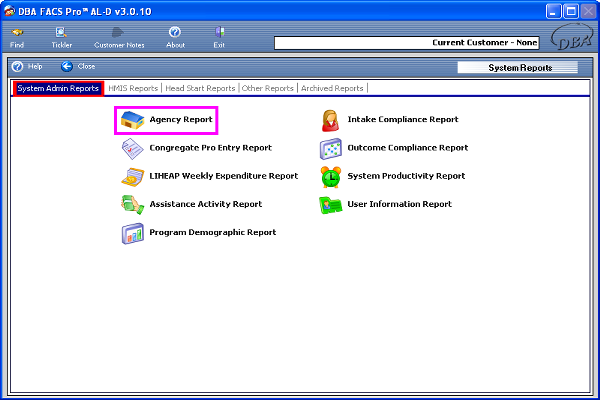
There are many types of system reports on the System Report main screen. The first kind are System Admin Reports. To create an Agency Report, click the Agency Report icon. |
|
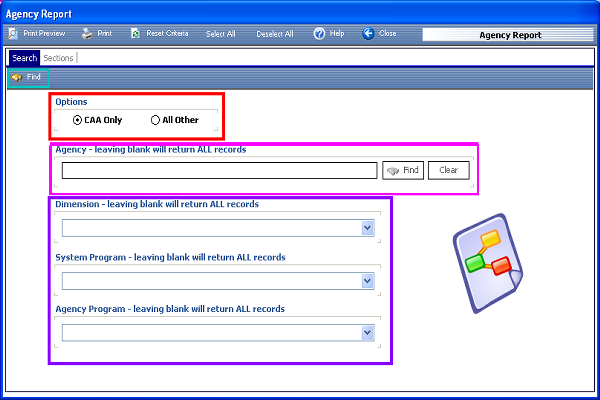
Here you can search for the agencies you want to create a report on. Under Option, you can choose CAA Only or All Others. By choosing CAA Only, the results will only include agencies related to your agency. By clicking All Other, you are given the option to Find an agency you want your search results related to. To find an agency, click Find. Another screen should appear. Type in a few letters of the agency name or other information and click Find. Double click on the agency in the Results screen and it should appear on the Agency Report screen. To narrow your search for agencies even further, you can use the drop downs to fill in Dimension, System Program, and Agency Program.
When all of the search criteria you want to enter has been filled, click Find located in the top left corner. |
|
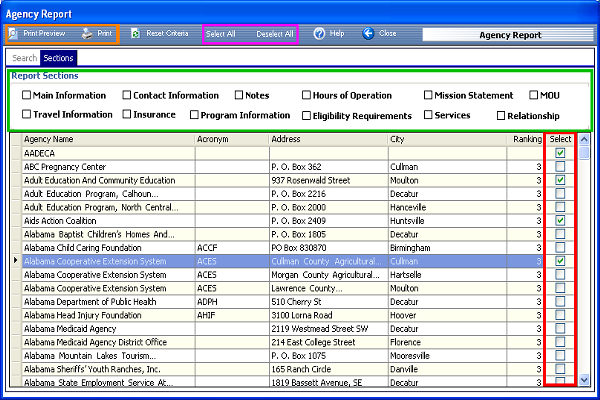
The search results should populate the screen. Check the box next to the agencies you wish to include in the report. Check the boxes at the top to specify what information or report sections that you want included in the report. You can Select or Deselect All. This will check or uncheck all of the Agencies in the results. This will NOT select all of the Report Sections. Once done, click Print Preview or Print. |
|
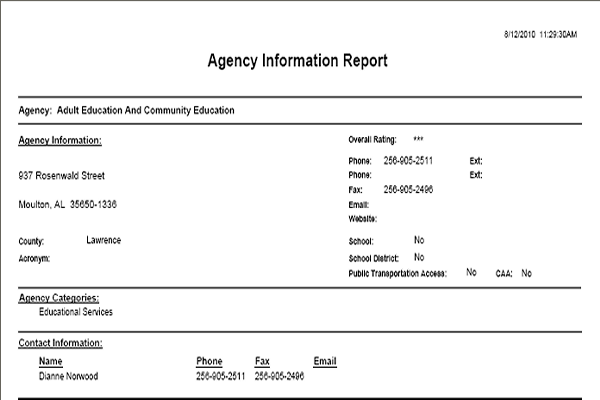
Example of an Agency Report. |
Congregate Pro Entry Reports
|
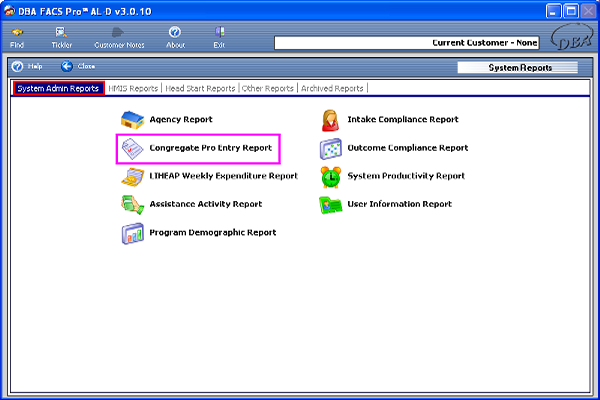
In the System Reports main screen, under the System Admin Reports tab, click the Congregate Pro Entry Report icon. |
|
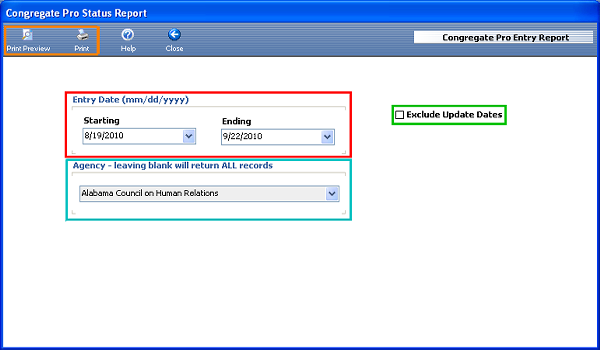
In the Congregate Pro Status Report screen, you need to enter the Entry Date using the drop down calendars. You can choose the Agency you want records for. The records in the report are related to the agency's sites. Checking Exclude Update Dates will exclude updated sections in the report. When done, click Print Preview or Print. |
|
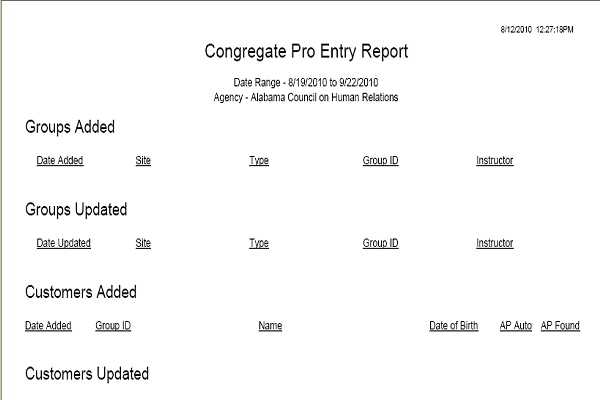
Example of a Congregate Pro Status Report. |
LIHEAP Weekly Expenditure Reports
|
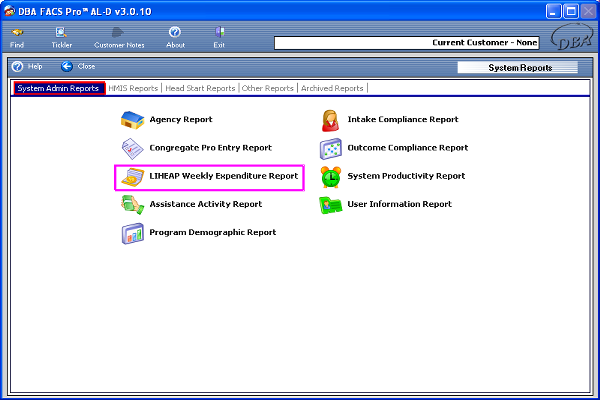
In the System Reports main screen, under the System Admin Reports tab, click the LIHEAP Weekly Expenditure icon. |
|
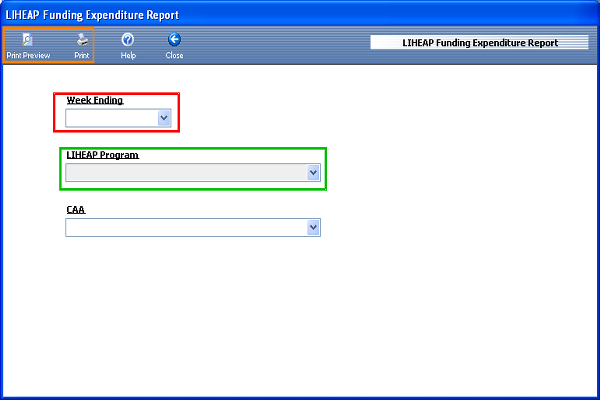
In the LIHEAP Funding Expenditure Report screen, you need to enter the Week Ending using the drop down calendar. You need to choose the LIHEAP Program that the report will be based on. When finished, click Print Preview or Print. |
|
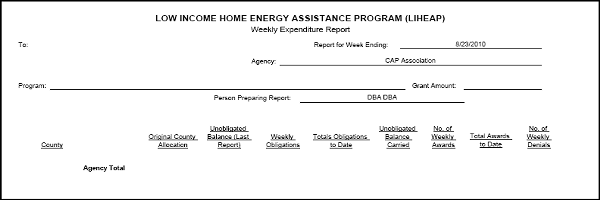
Example of a LIHEAP Funding Expenditure Report. |
LIHEAP Weekly Expenditure Reports
|
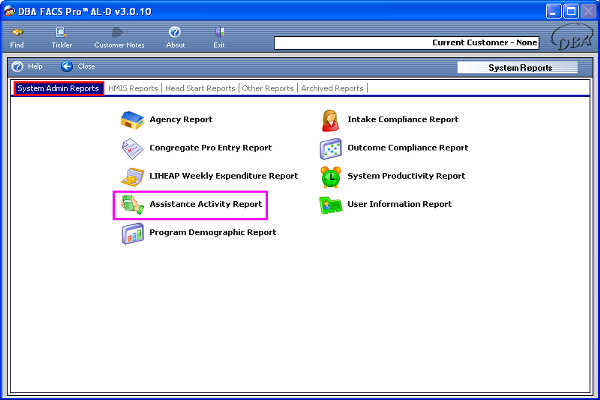
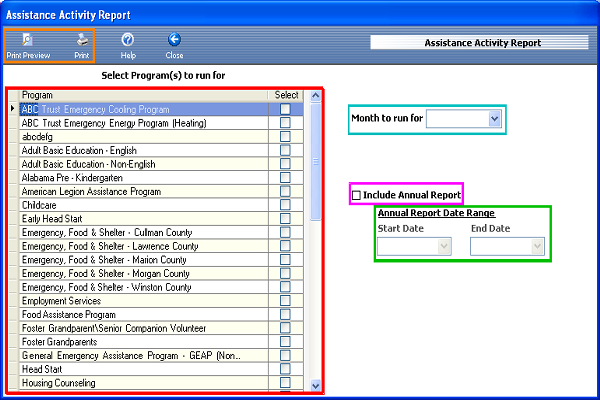
In the System Reports main screen, under the System Admin Reports tab, click the Assistance Activity Report icon. |
|
In the Assistance Activity Report screen, you need to select which Program(s) will be included in the report by clicking the checkbox next to the program names in the chart. You need to choose which month the report will be based on. You can choose whether to Include an Annual Report. If checked, you also need to choose a date range for the Annual Report. When finished, click Print Preview or Print. |
|
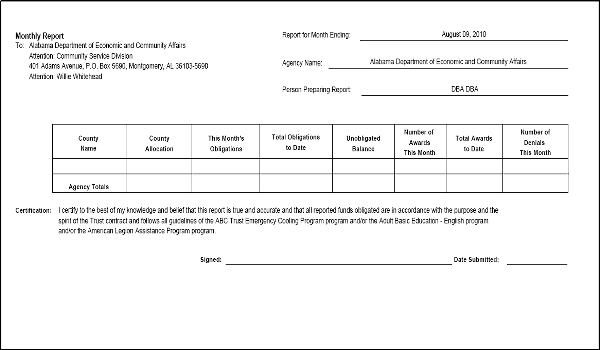
Example of a Assistance Activity Report. |
Program Demographic Reports
|
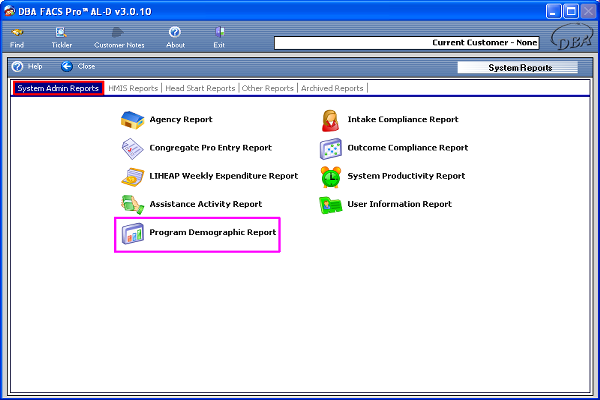
In the System Reports main screen, under the System Admin Reports tab, click the Program Demographic Report icon. |
|
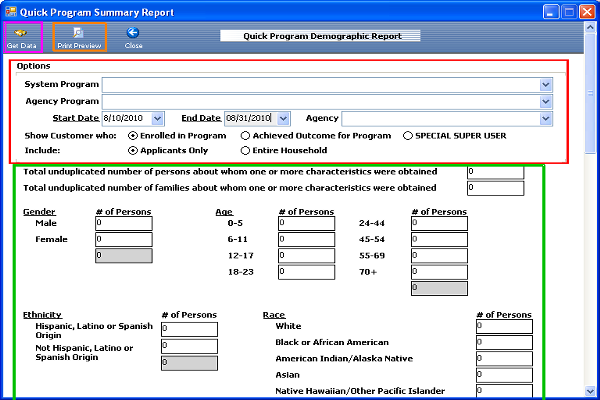
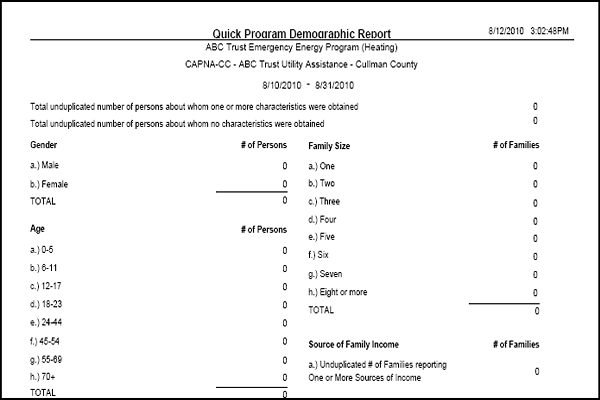
In the Assistance Activity Report screen, based off of the information given in the Options, the bottom part will be filled out with demographic information by the program. Once the Options are filled out, click Get Data and the rest of the information will be entered. Click Print Preview when done. |
|
Example of a Program Demographic Report. |
Intake Compliance Reports
|
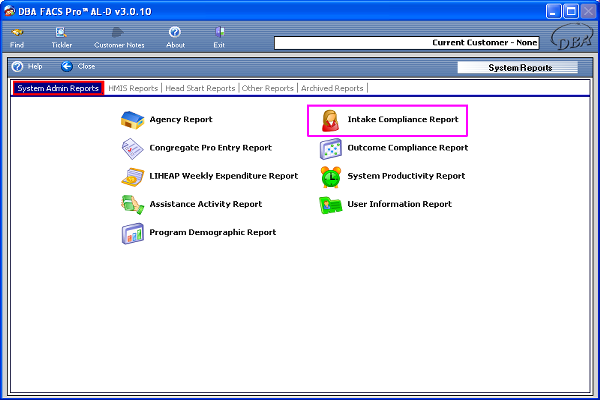
In the System Reports main screen, under the System Admin Reports tab, click the Intake Compliance Report icon. |
|
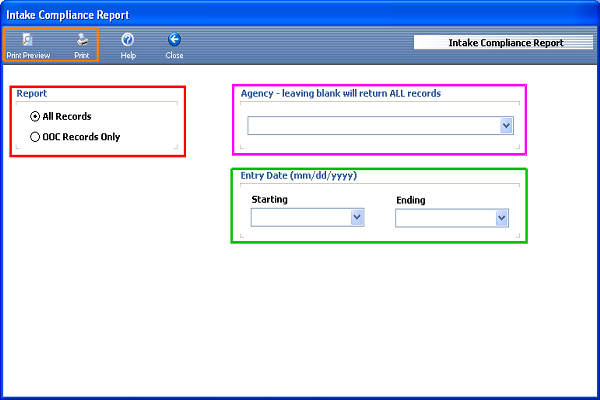
In the Intake Compliance Report screen, you need to choose which Agency the report will be on and the Entry Date by using the drop downs. You also need to select what records will be in the report. When done, click Print Preview or Print. |
|
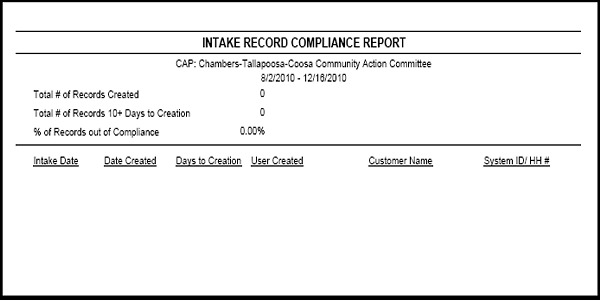
Example of an Intake Compliance Report. |
Outcome Compliance Reports
|
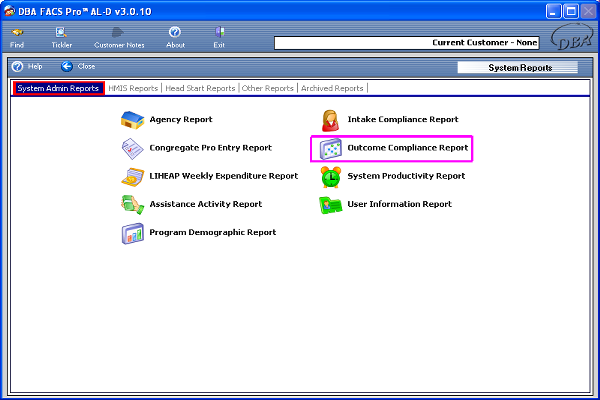
In the System Reports main screen, under the System Admin Reports tab, click the Intake Compliance Report icon. |
|
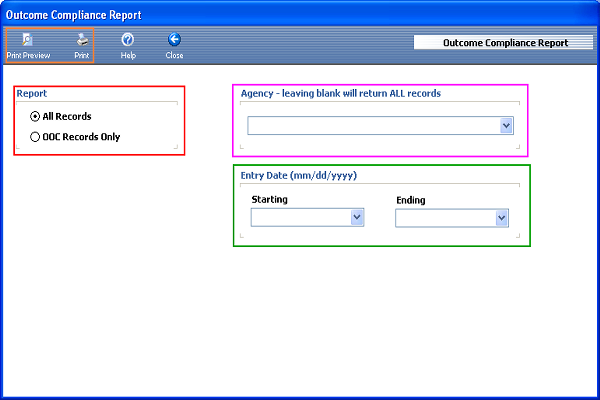
In the Outcome Compliance Report screen, you need to choose which Agency the report will be on and the Entry Date by using the drop downs. You also need to select what records will be in the report. When done, click Print Preview or Print. |
|
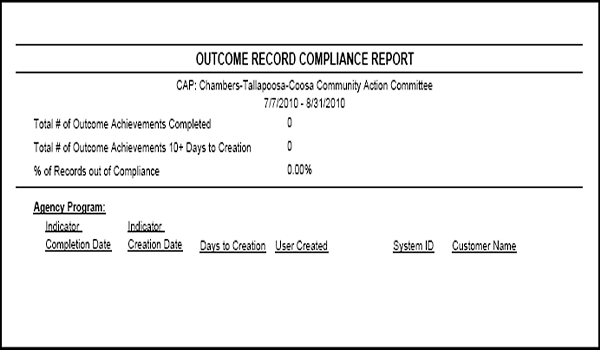
Example of an Outcome Compliance Report. |
System Productivity Reports
|
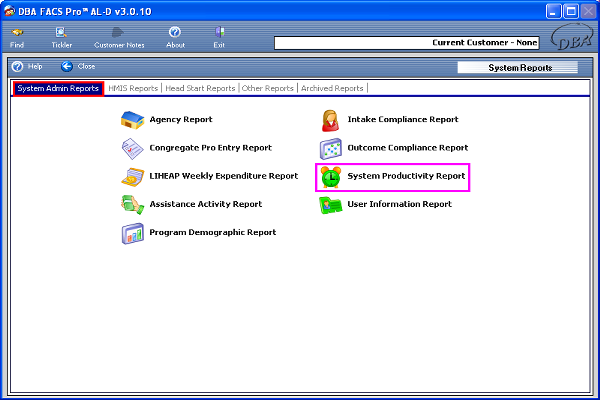
In the System Reports main screen, under the System Admin Reports tab, click the System Productivity Report icon. |
|
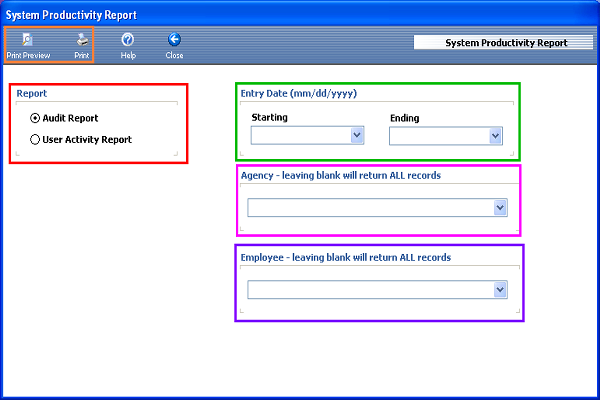
In the System Productivity Report screen, you need to choose the Entry Date, which Agency the report will be on, and the Employee by using the drop downs. You also need to select what type of report. When done, click Print Preview or Print. |
|
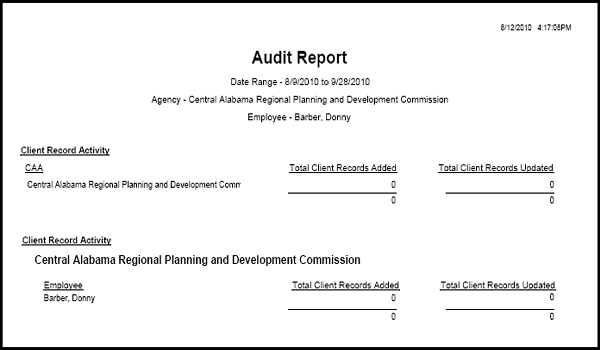
Example of a System Productivity Report. |
User Information Reports
|
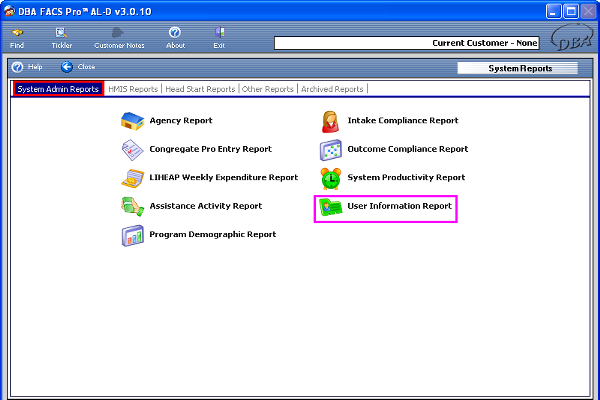
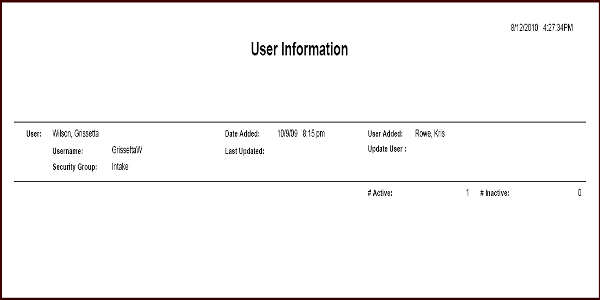
In the System Reports main screen, under the System Admin Reports tab, click the User Information Report icon. This will load a report which has information on all of the users within your agency. |
|
Example of a User Information Report. |
APR Reports
|
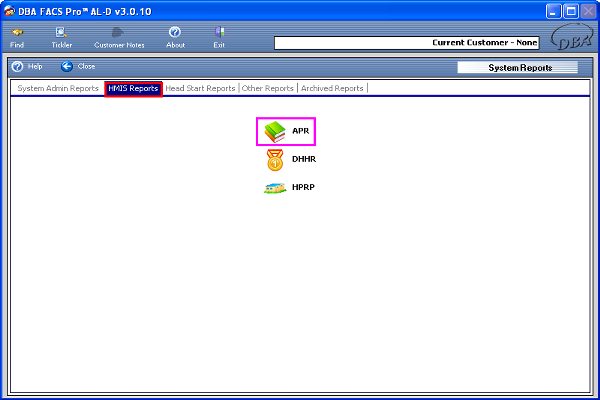
In the System Reports main screen, under the HMIS Reports tab, click the APR icon. |
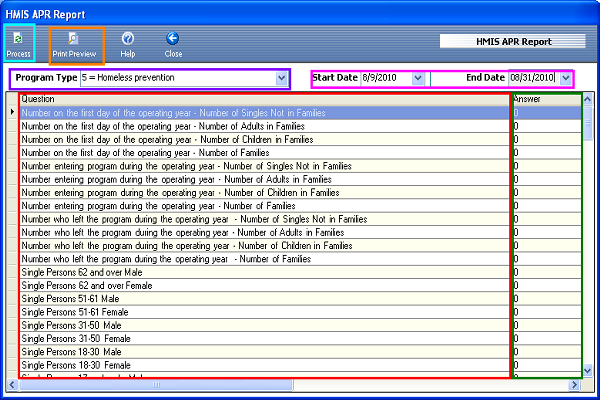
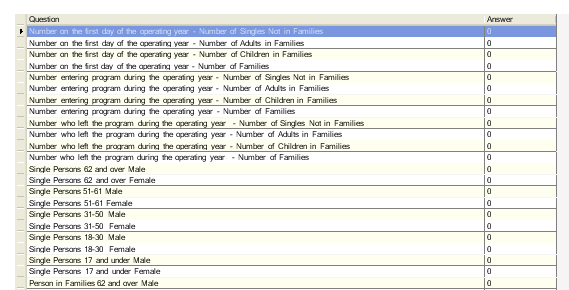
| In the APR Report screen, use the drop downs to enter the Program Type, Start Date, and End Date. Clicking Process, after the three drop downs are filled, will result in a list of categories about the program and answers as to how many people fit into those categories. Click Print Preview when done. |
|
Example of an APR Report. |
APR Reports
|
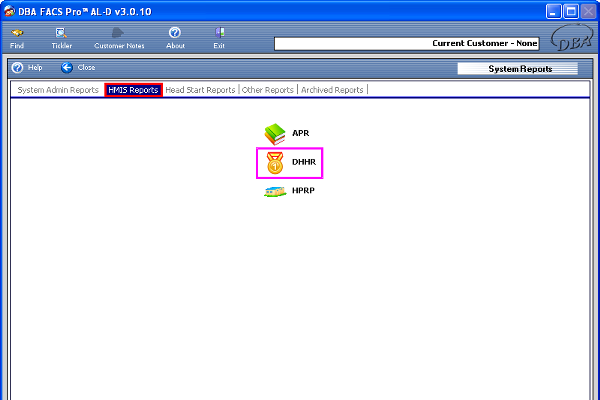
In the System Reports main screen, under the HMIS Reports tab, click the DHHR icon. |
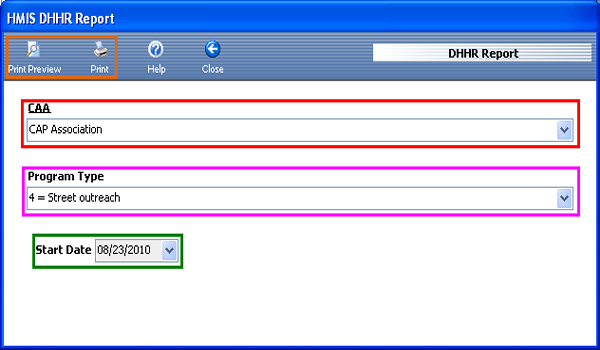
| In the HMIS Report screen, Use the drop downs to enter the CAA, Program Type, and Start Date. Click Print Preview or Print when done. |
|
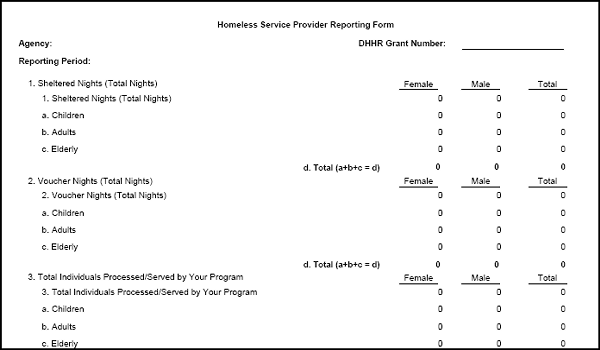
Example of a DHHR Report. |
|
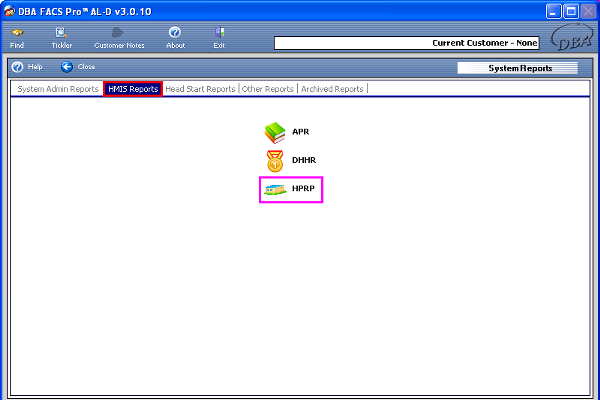
In the System Reports main screen, under the HMIS Reports tab, click the HPRP icon. |
|
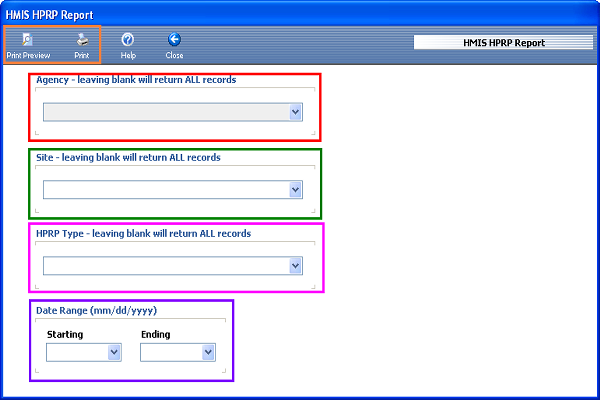
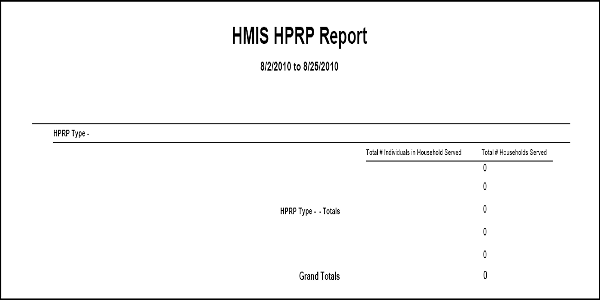
In the HMIS Report screen, you need to use the drop downs to choose the Agency, Site, HPRP Type, and Date Range. When done, click Print Preview or Print. |
|
Example of a DHHR Report. |
|
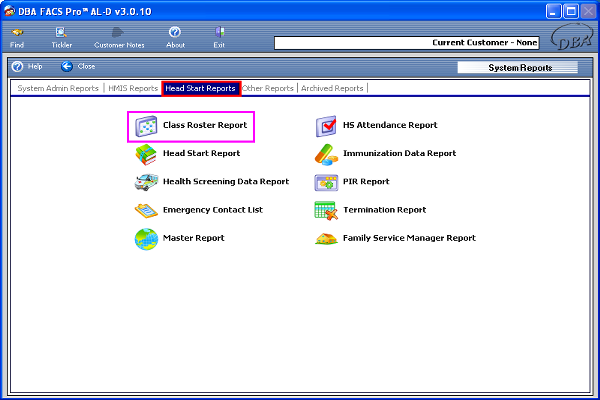
In the System Reports main screen, under the Head Start Reports tab, click the Class Roster Report icon. |
|
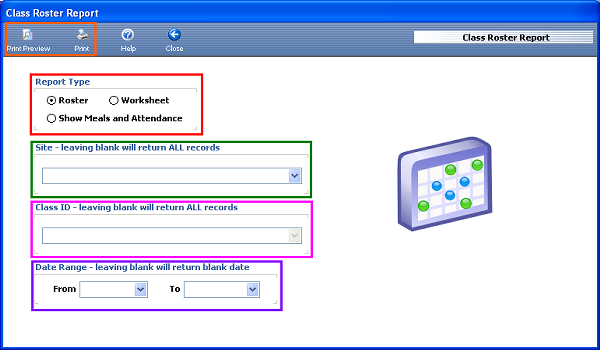
In the Class Roster Report screen, you need to choose what information will be in the report, the Site, Class ID, and the Date Range by using the drop downs. When done, click Print Preview or Print. |
|
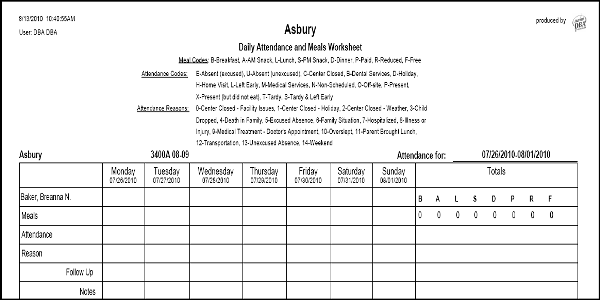
Example of a DHHR Report. |
Head Start Reports
|
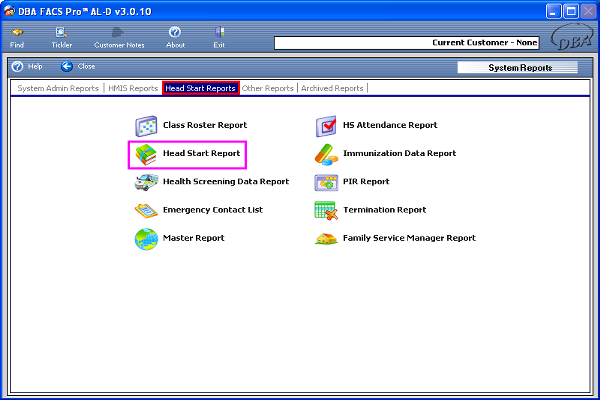
In the System Reports main screen, under the Head Start Reports tab, click the Head Start Report icon. |
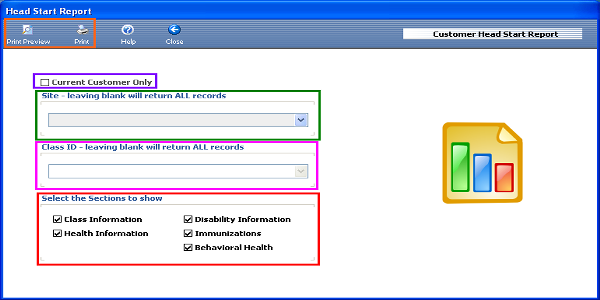
|
In the Head Start Report screen, you can choose if the report will be on the Current Customer Only. The program will generate your report based upon the criteria you input with the drop down boxes. You can enter the Site, Class ID, and what sections will be in the report. When done, click Print Preview or Print. |
|
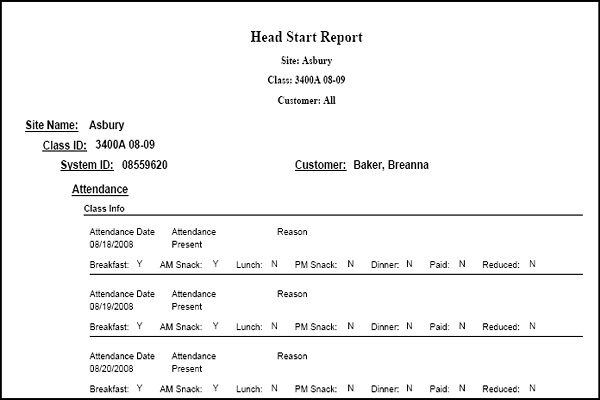
Example of a Head Start Report. |
Health Screening Data Reports
|
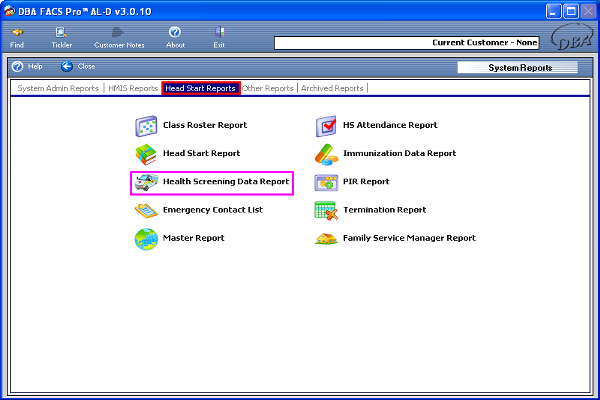
In the System Reports main screen, under the Head Start Reports tab, click the Health Screening Data Report icon. |
|
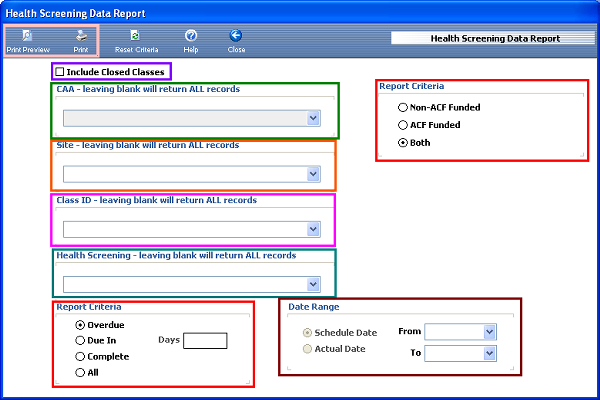
In the Health Screening Data Report screen, you can choose if the report will Include Closed Cases. The program will generate your report based upon the criteria you input with the drop down boxes. You can enter the CAA, Site, Class ID, type of Health Screening, the Date Range, and the report criteria. When done, click Print Preview or Print. |
|
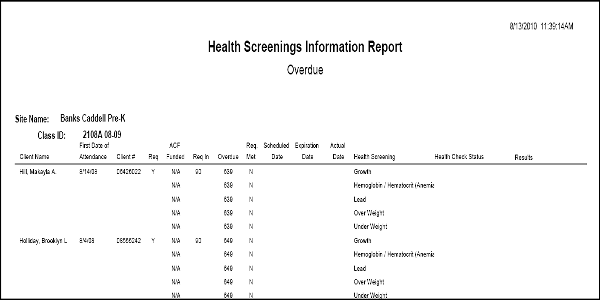
Example of a Health Screening Data Report. |
Emergency Contact List
|
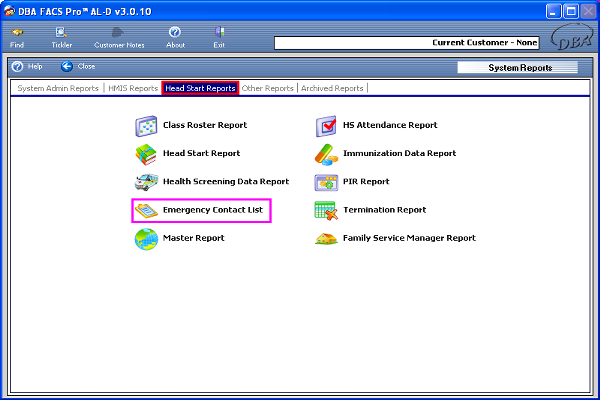
In the System Reports main screen, under the Head Start Reports tab, click the Emergency Contact List icon. |
|
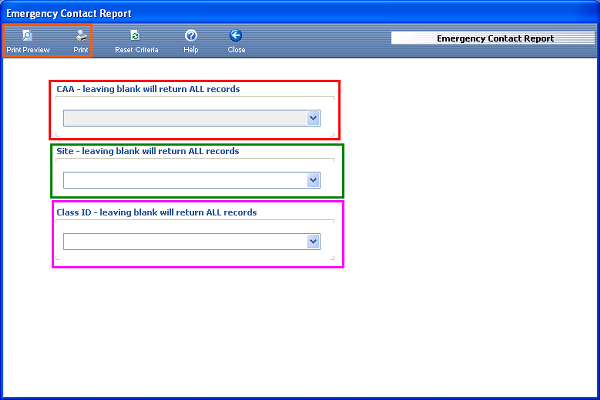
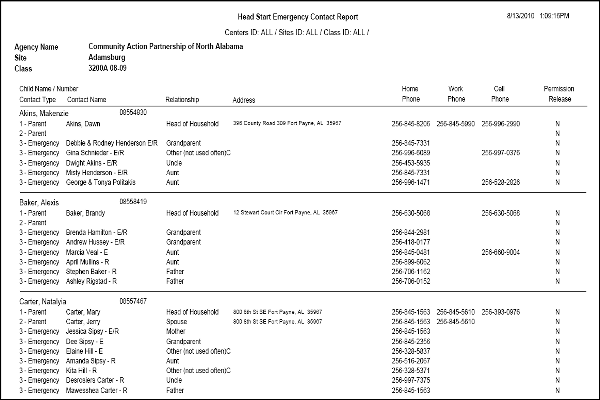
In the Emergency Contact List screen, choose the CAA, Site, and Class ID. The more information that is filled in, the more specific the report becomes. Click Print Preview or Print when done. |
|
Example of an Emergency Contact List. |
Master Reports
|
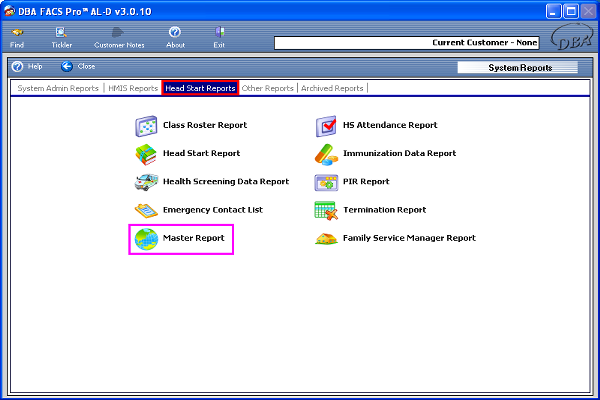
In the System Reports main screen, under the Head Start Reports tab, click the Master Report icon. |
|
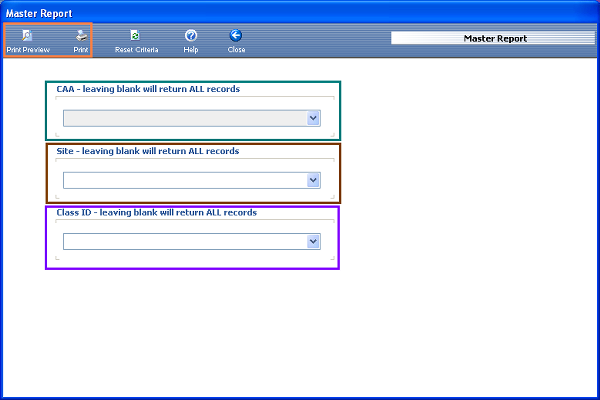
In the Masters Report screen, choose the CAA, Site, and Class ID. The more information that is filled in, the more specific the report becomes. Click Print Preview or Print when done. |
|
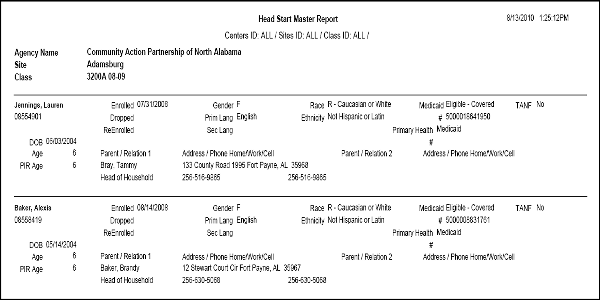
Example of a Master Report. |
HS Attendance Reports
|
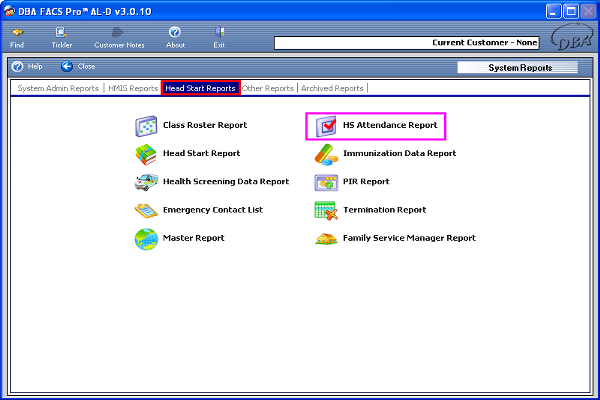
In the System Reports main screen, under the Head Start Reports tab, click the HS Attendance Report icon. |
|
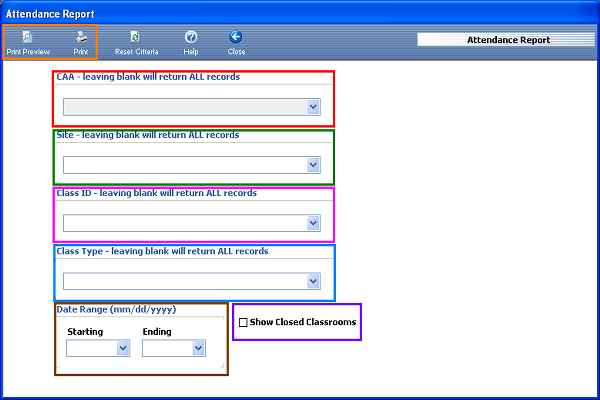
In the Attendance Report screen, choose the CAA, Site, Class ID, Class Type, and Date Range using the dorp downs. You can also choose to Show Closed Classrooms on the report. The more information that is filled in, the more specific the report becomes. Click Print Preview or Print when done. |
|
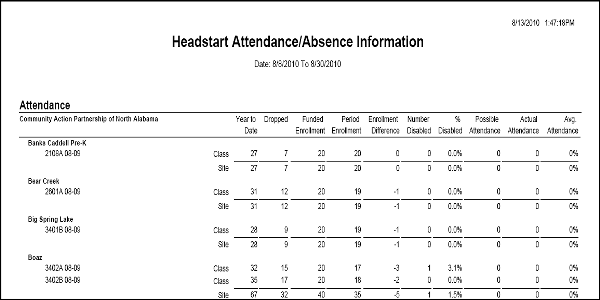
Example of a HS Attendance Report. |
Immunization Data Reports
|
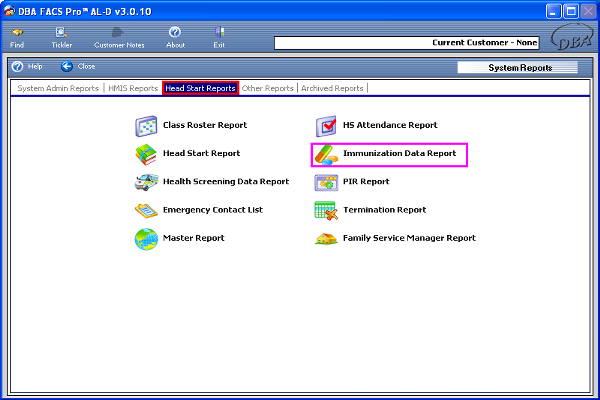
In the System Reports main screen, under the Head Start Reports tab, click the Immunization Data Report icon. |
|
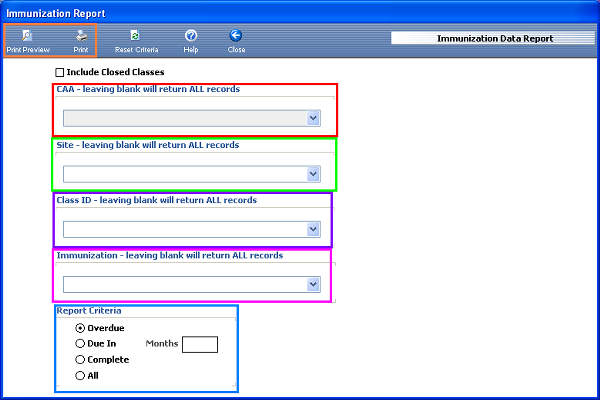
In the Immunization Data Report screen, choose the CAA, Site, Class ID, and Immunization. You can also choose the Report Criteria. The more information that is filled in, the more specific the report becomes. Click Print Preview or Print when done. |
|
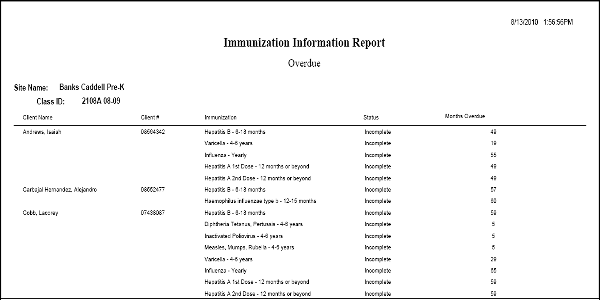
Example of an Immunization Data Report. |
|
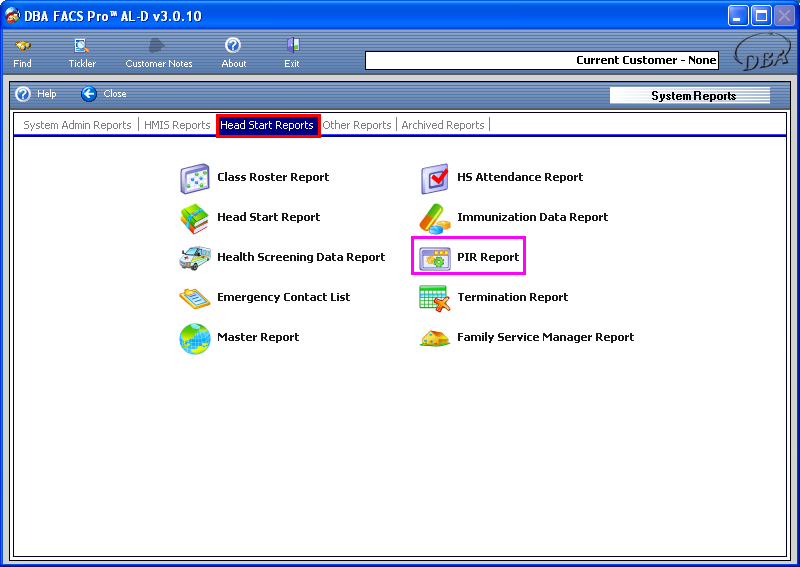
In the System Reports main screen, under the Head Start Reports tab, click the PIR Report icon. |
Termination Reports
|
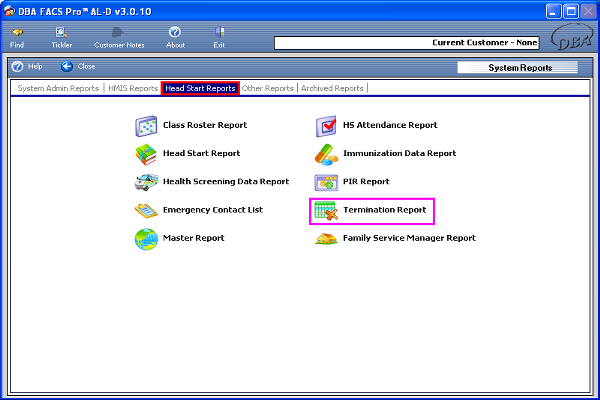
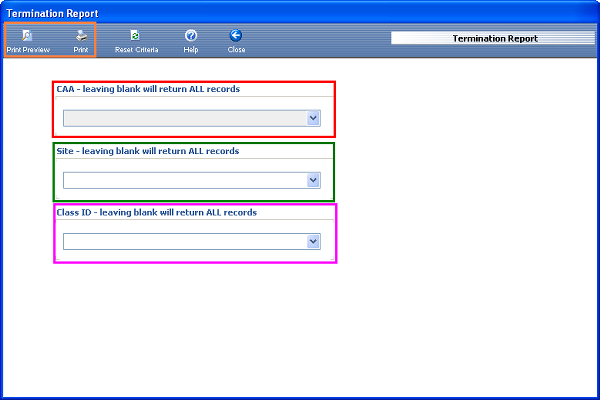
In the System Reports main screen, under the Head Start Reports tab, click the Termination Report icon. |
|
In the Masters Report screen, choose the CAA, Site, and Class ID. The more information that is filled in, the more specific the report becomes. Click Print Preview or Print when done. |
|
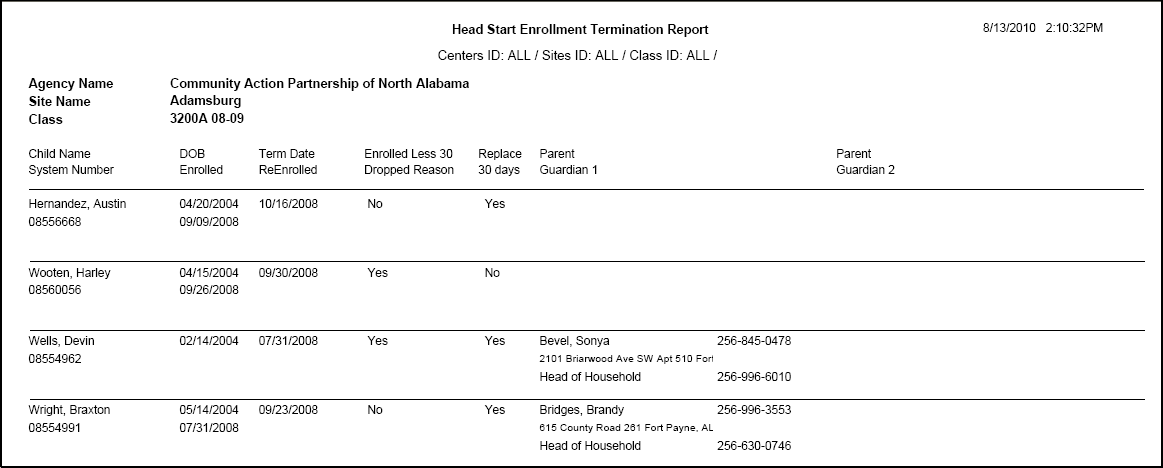
Example of a Termination Report. |
Family Service Manager Reports
|
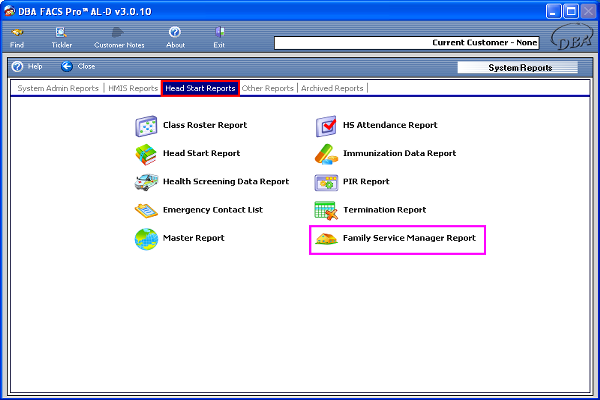
In the System Reports main screen, under the Head Start Reports tab, click the Family Service Manager Report icon. |
|
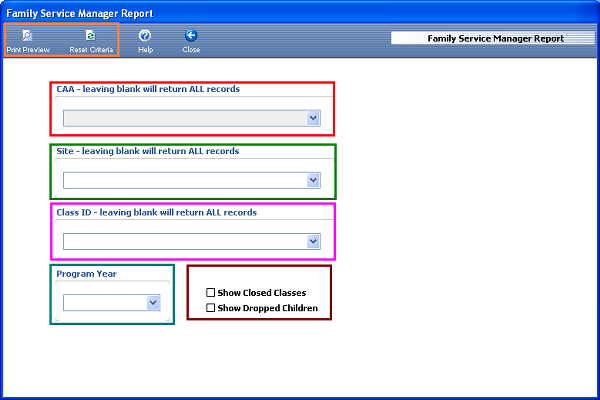
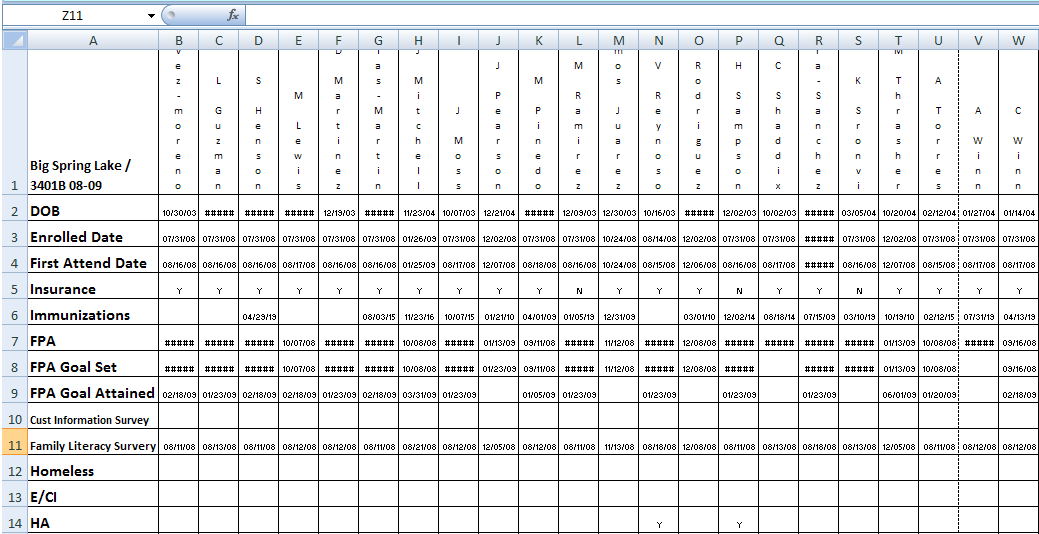
In the Family Service Manager Report screen, choose the CAA, Site, Class ID, and Program Year. You can also choose whether the report Shows Closed Classes and Shows Dropped Children. The more information that is filled in, the more specific the report becomes. Click Print Preview or Print when done. |
|
Example of a Family Service Manager Report. |
Action Plan Reports
|
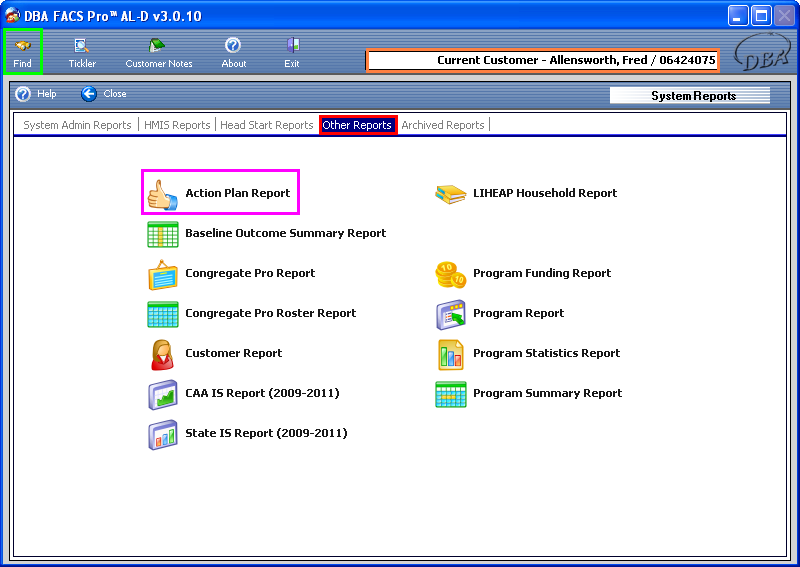
In the System Reports main screen, under the Other Reports tab, click the Action Plan Report icon. Note: You must first select a customer using Find. |
|
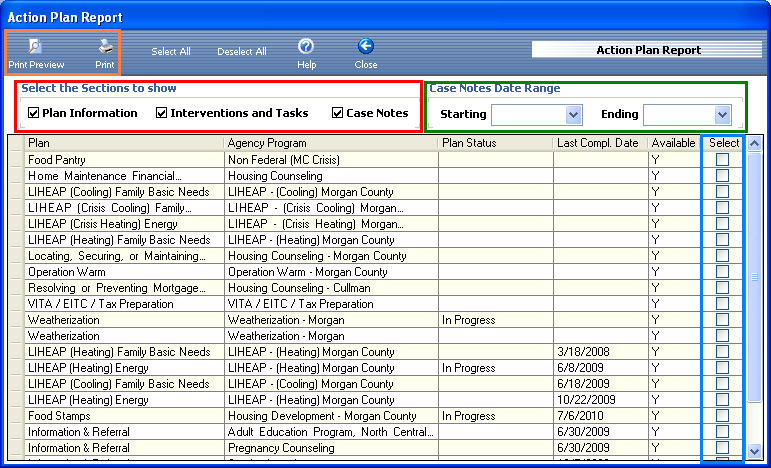
In the Action PlanReport screen, you can choose what Sections to show in the report. You can enter a Case Notes Date Range using the drop down. Select (check) what plans you want in the report. Click Print Preview or Print when done. |
|
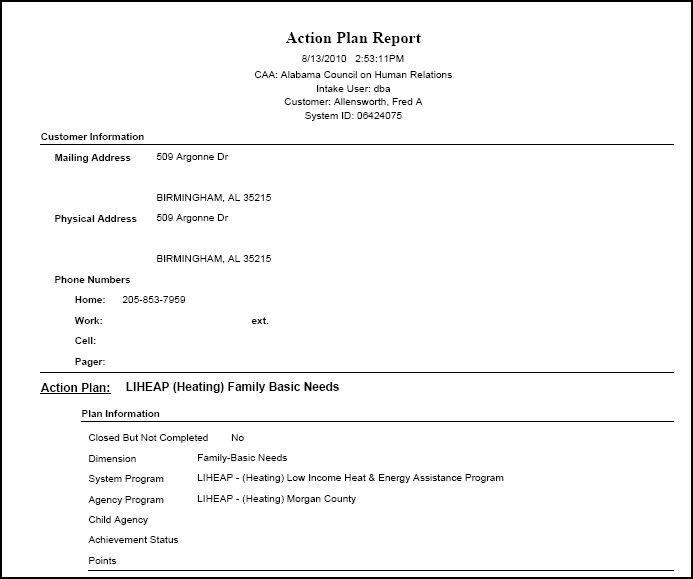
Example of an Action Plan Report. |
Baseline Outcome Summary Reports
|
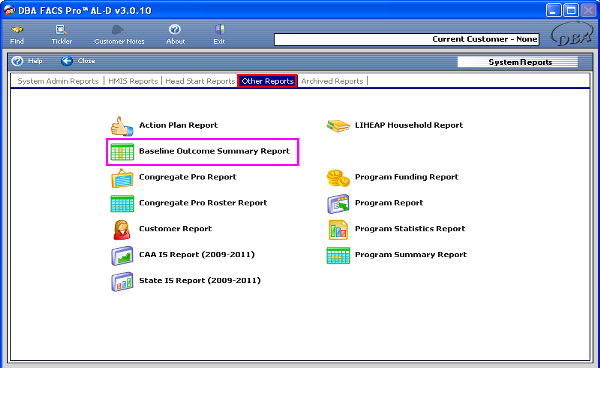
In the System Reports main screen, under the Other Reports tab, click the Baseline Outcome Summary Report icon. |
|
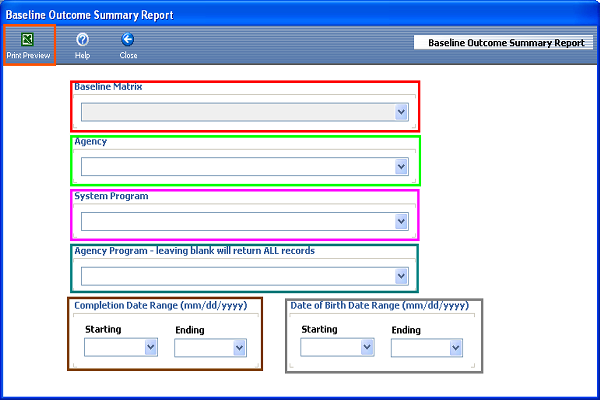
In the Baseline Outcome Summary Report screen, choose the Baseline Matrix, Agency, System Program, and Agency Program. You can also choose a Completion Date Range and Date of Birth Range using the dorp down calendars. The more information that is filled in, the more specific the report becomes. Click Print Preview when done. |
|
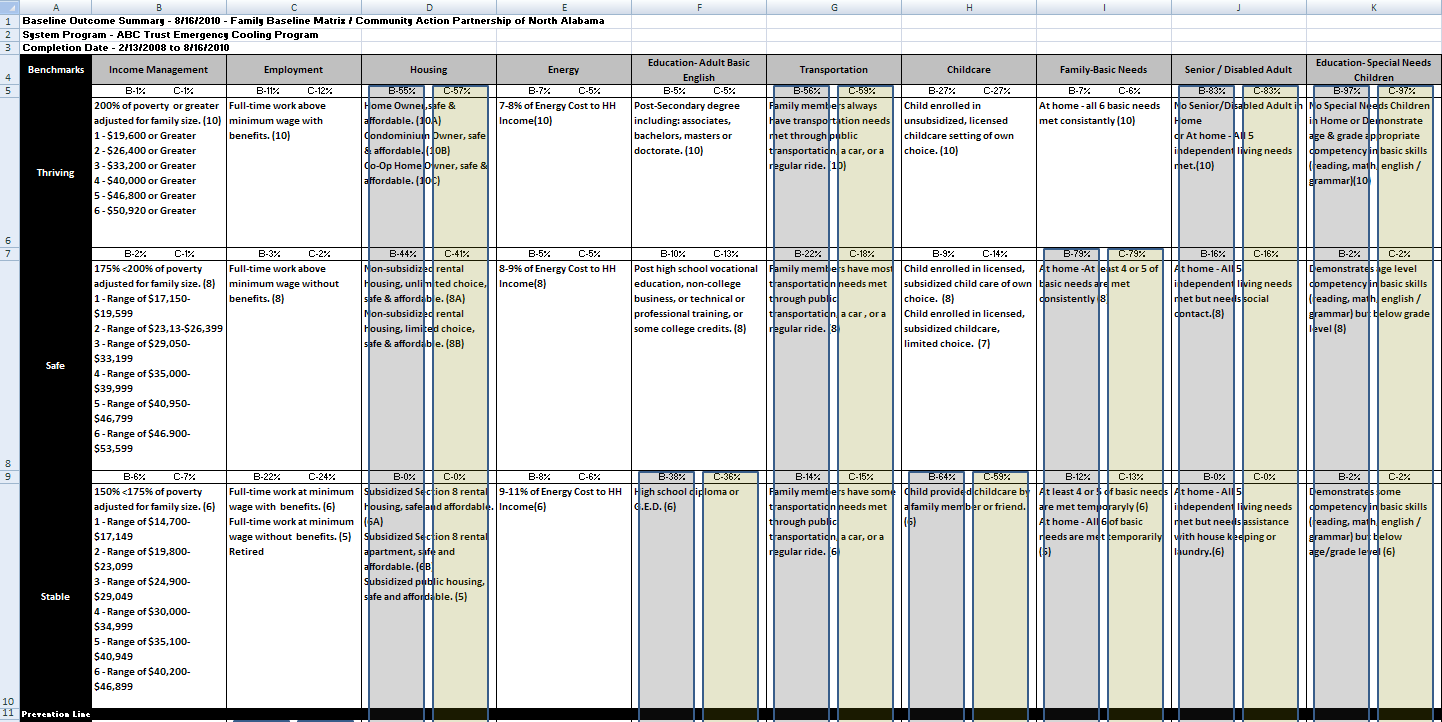
Example of a Baseline Outcome Summary Report. |
Congregate Pro Reports
|
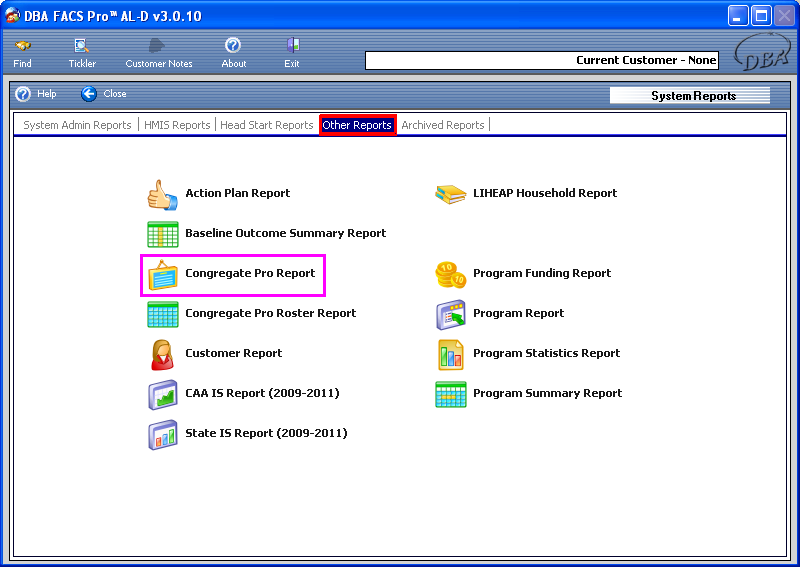
In the System Reports main screen, under the Other Reports tab, click the Congregate Pro Report icon. |
|
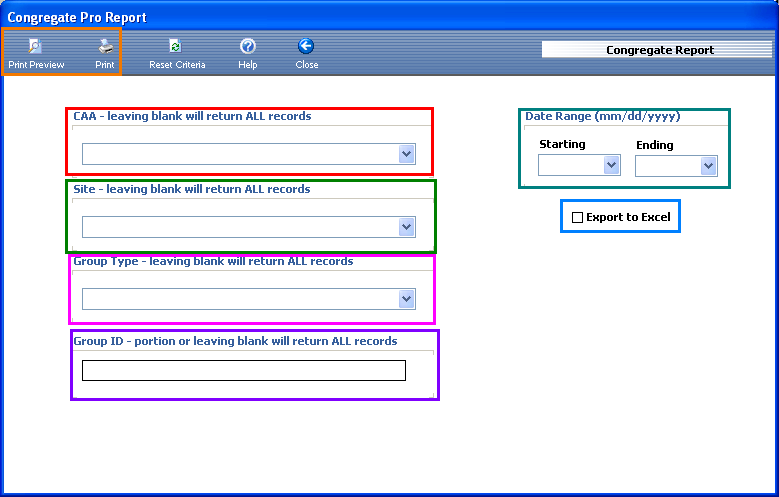
In the Congregate Pro Report screen, choose the CAA, Site, Group Type, and Group ID. You can also choose a Date Range using the drop down calendars. You can check the box and Export to Excel. The more information that is filled in, the more specific the report becomes. Click Print Preview when done. |
|
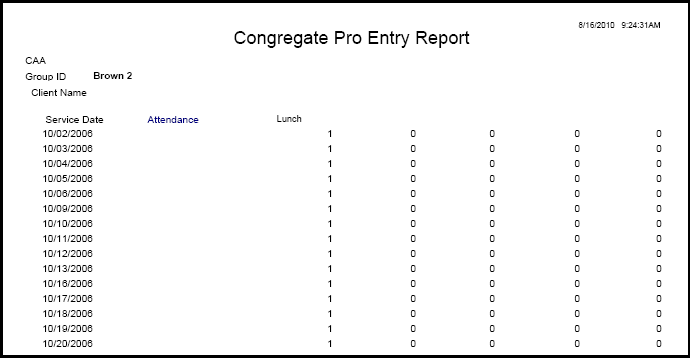
Example of a Congregate Pro Report. |
Congregate Pro Roster Report
|
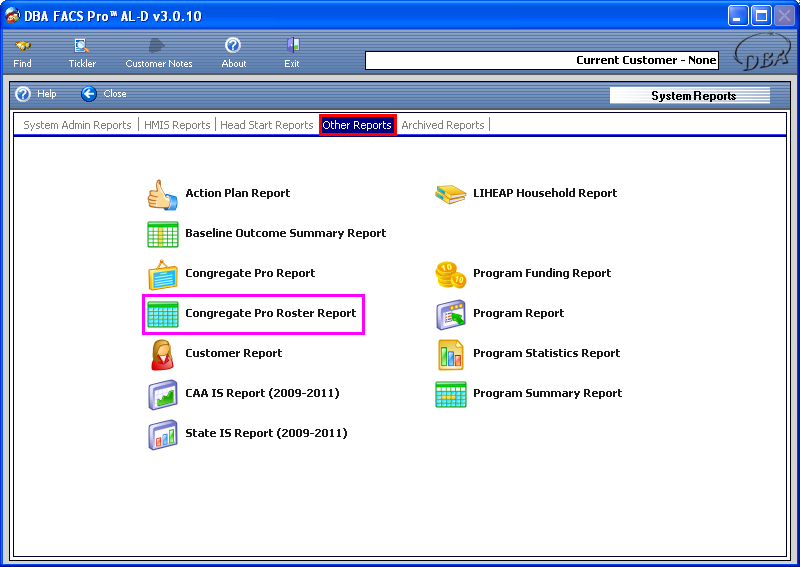
In the System Reports main screen, under the Other Reports tab, click the Congregate Pro Roster Report icon. |
|
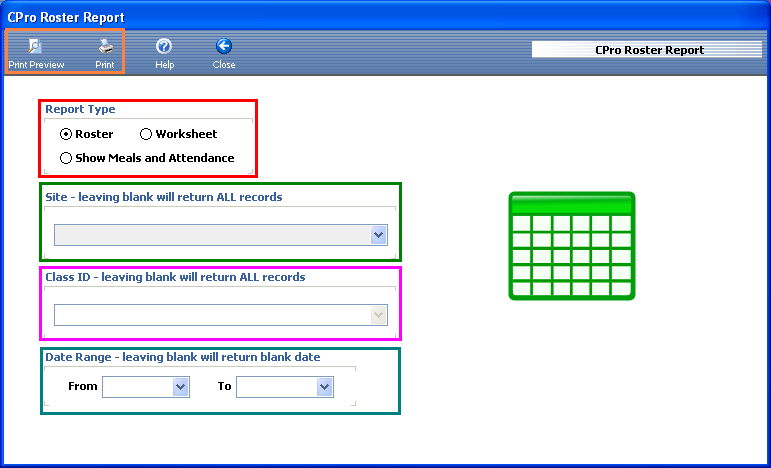
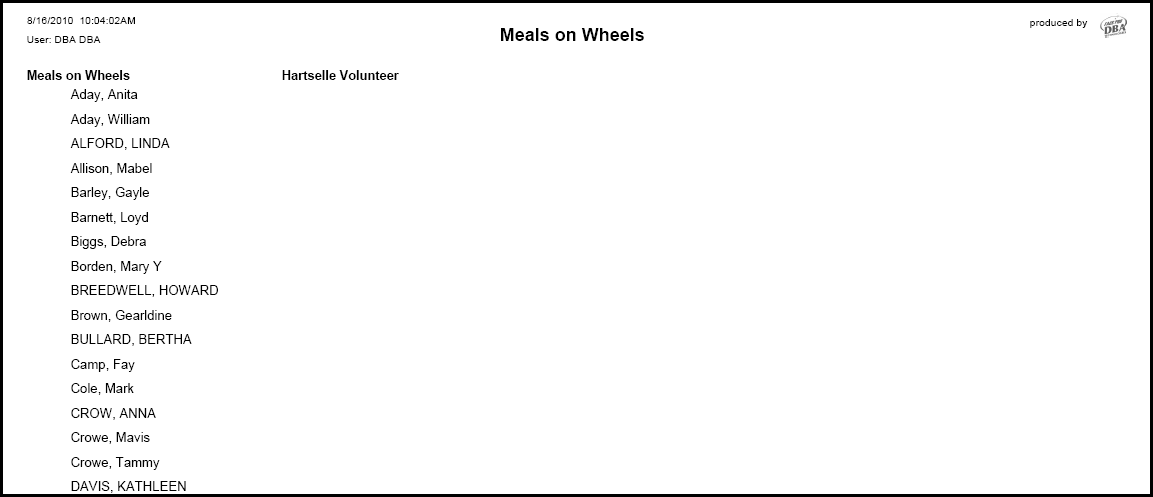
In the Congregate Pro Report screen, choose what type of report you want to create. Enter the Site, Class ID, and Date Range. The more information that is filled in, the more specific the report becomes. Click Print Preview or Print when done. |
|
Example of a Congregate Pro Roster Report. |
|
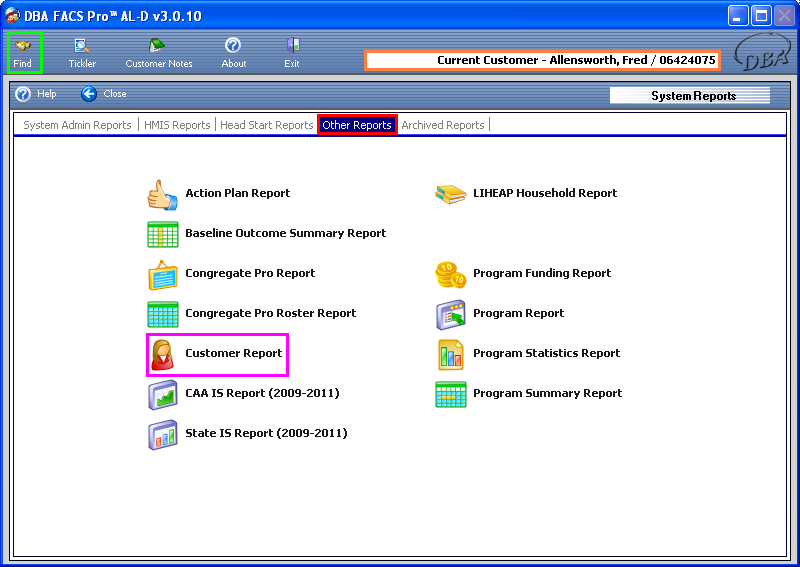
In the System Reports main screen, under the Other Reports tab, click the Customer Report icon. Note: You must first select a customer using Find. |
|
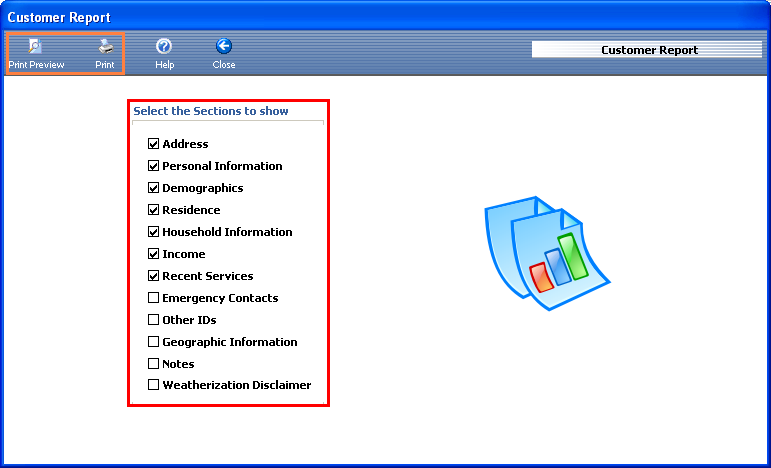
In the Customer Report screen, check off what information you want to see in the the report. When done, click Print or Print Preview. |
|
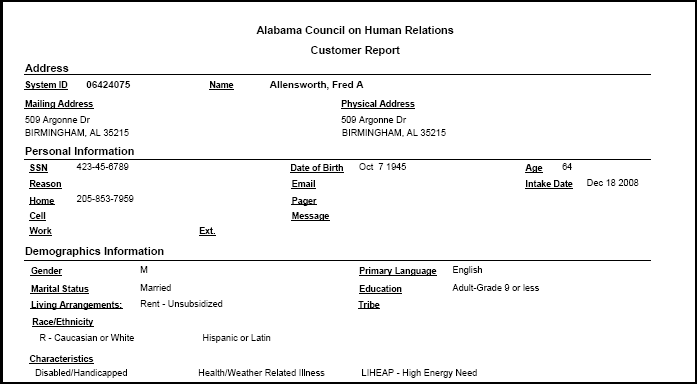
Example of a Customer Report. |
LIHEAP Household Reports
|
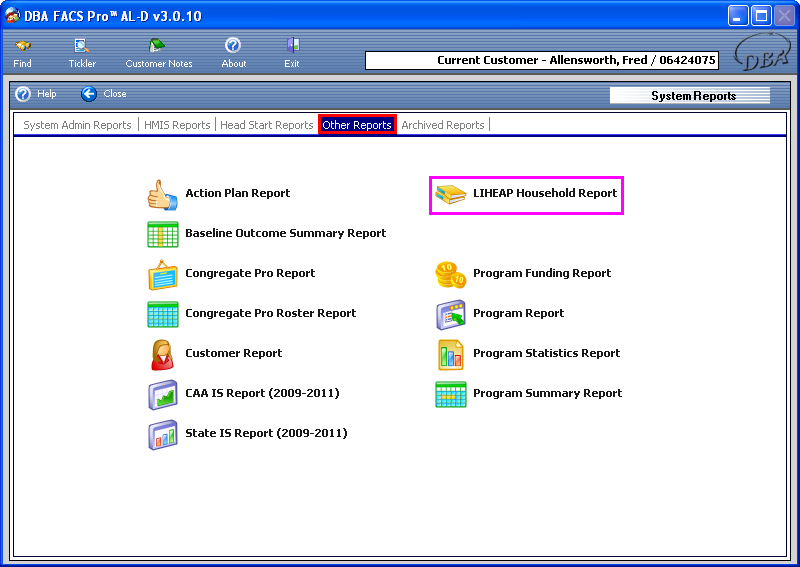
In the System Reports main screen, under the Other Reports tab, click the LIHEAP Household Report icon. |
|
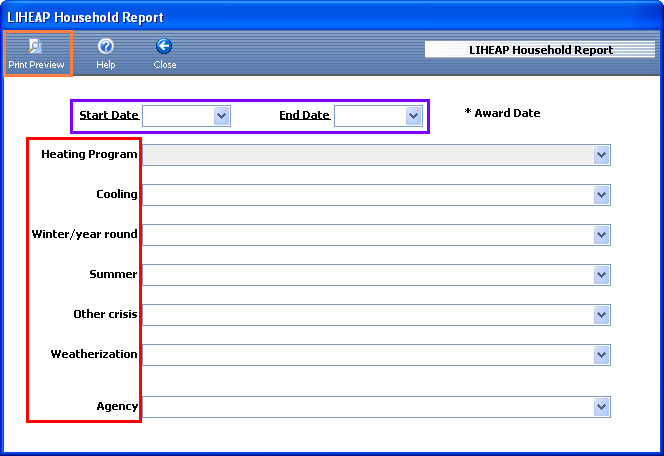
In the LIHEAP Household Report screen, enter the appropriate information using the drop downs. The Start and End Date are required as well as a program. The more information that is filled in, the more specific the report becomes. Click Print Preview when done. |
|
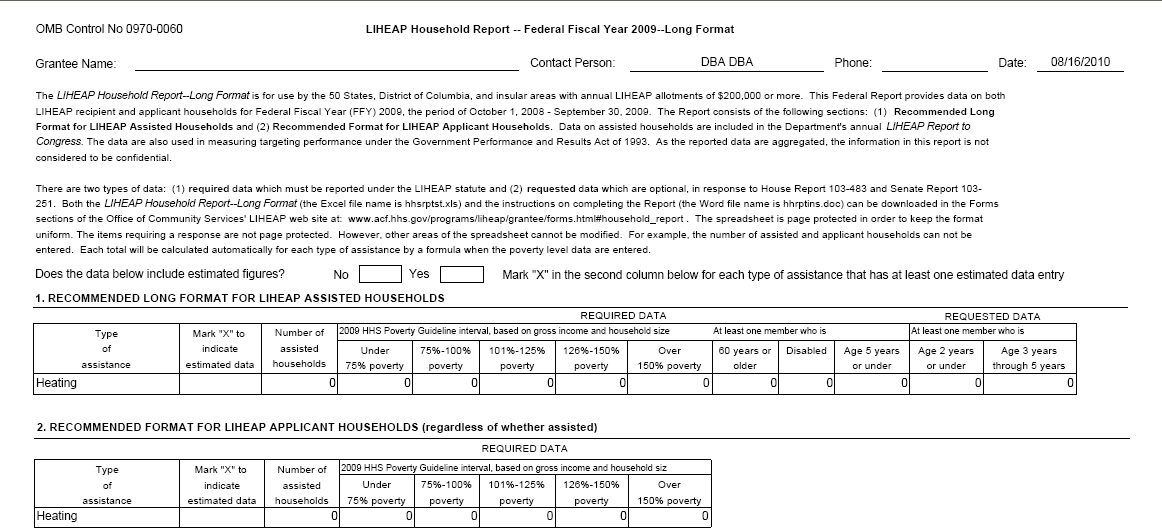
Example of a LIHEAP Household Report. |
Program Funding Reports
|
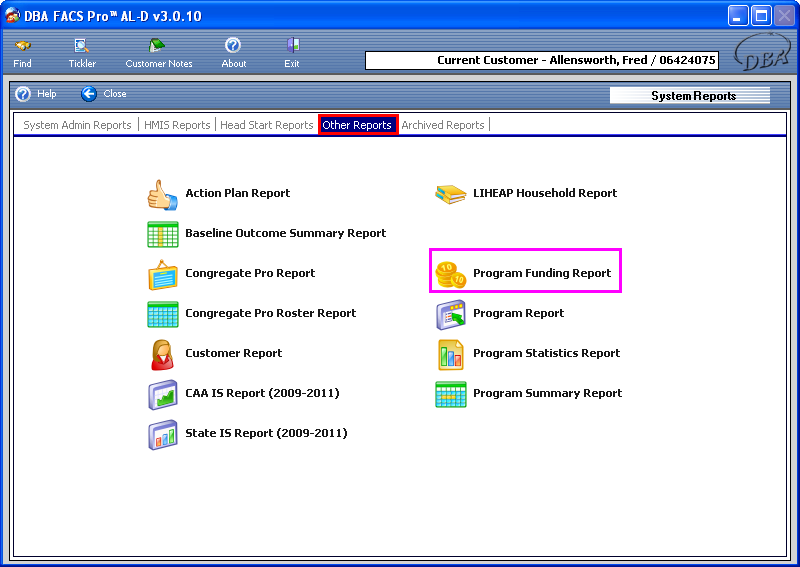
In the System Reports main screen, under the Other Reports tab, click the Program Funding Report icon. |
|
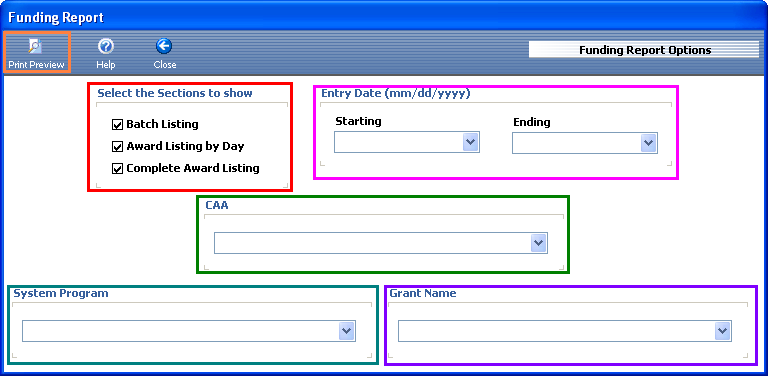
In the Program Funding Report screen, choose what Sections you want in the report. Input the Entry Date, CAA, System Program, and Grant Name using the drop downs. The more information that is filled in, the more specific the report becomes. Click Print Preview when done. |
|
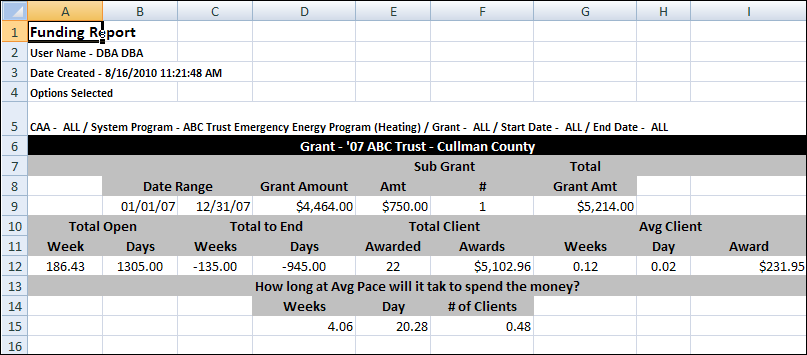
Example of a Program Funding Report. |
Program Reports
|
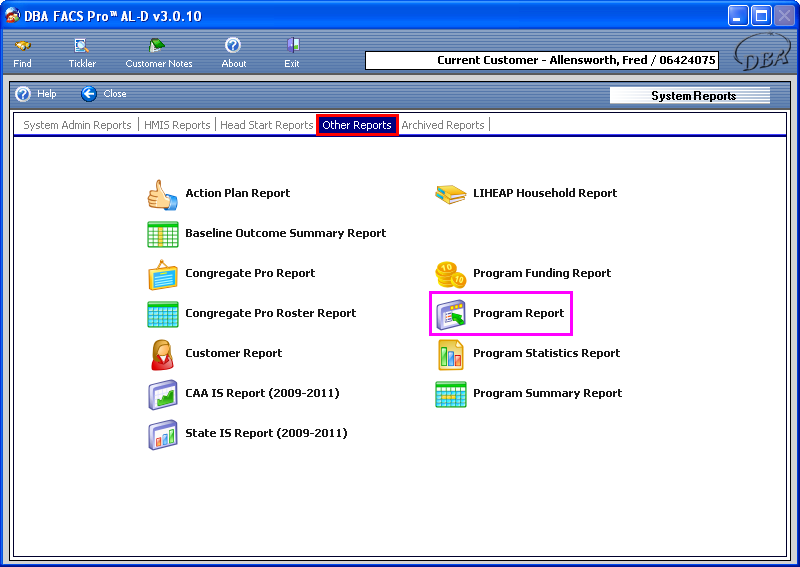
In the System Reports main screen, under the Other Reports tab, click the Program Report icon. |
|
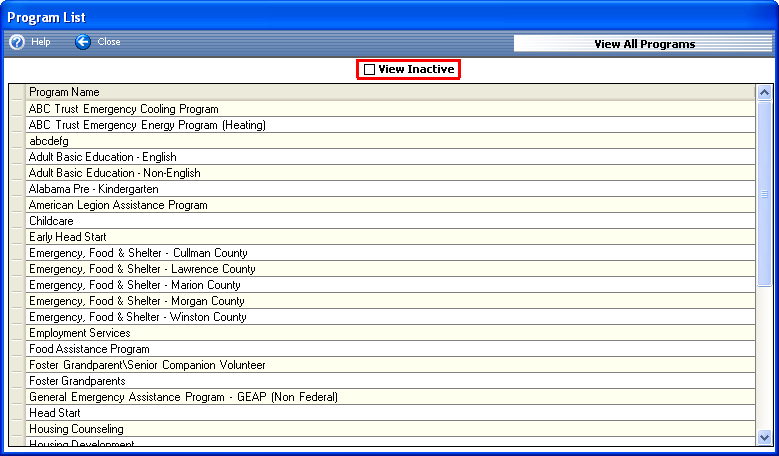
The Program Report screen simply lists all programs. You can choose to view inactive programs . |
Program Summary Reports
|
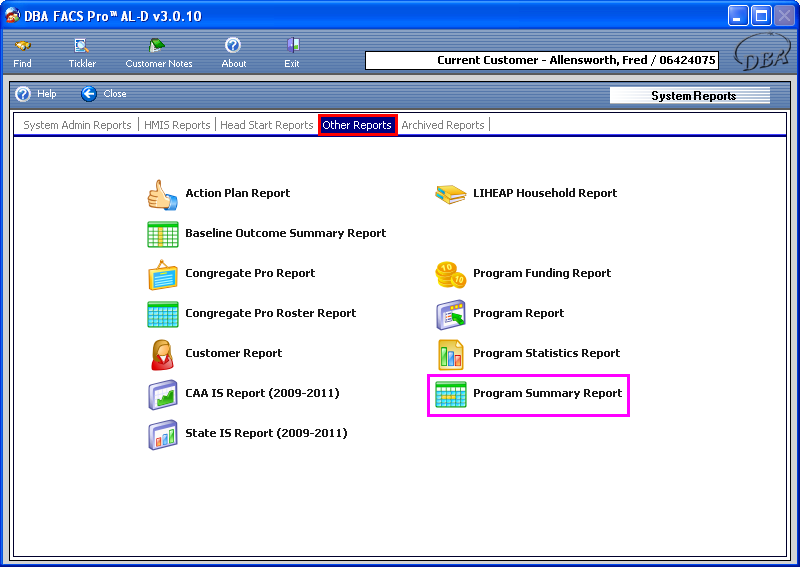
In the System Reports main screen, under the Other Reports tab, click the Program Summary Report icon. |
|
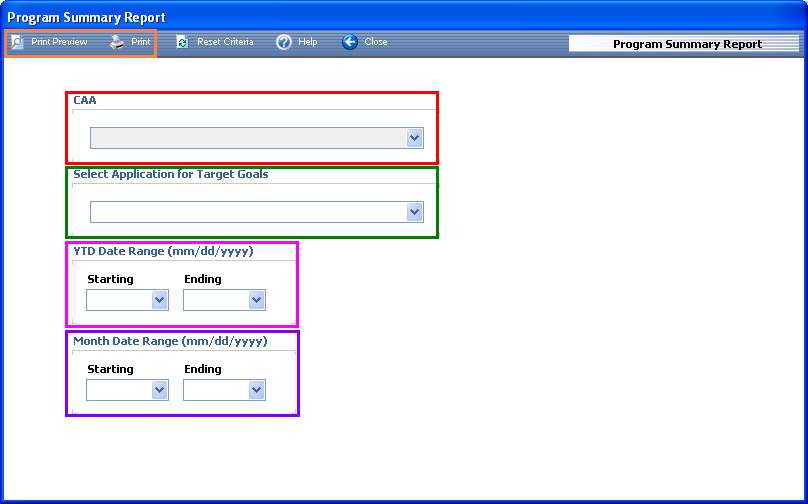
In the Program Summary Report screen, choose the CAA, Application for Target Goals, YTD Date Range, and Month Date Range. The more information that is filled in, the more specific the report becomes. Click Print Preview or Print when done. |
|
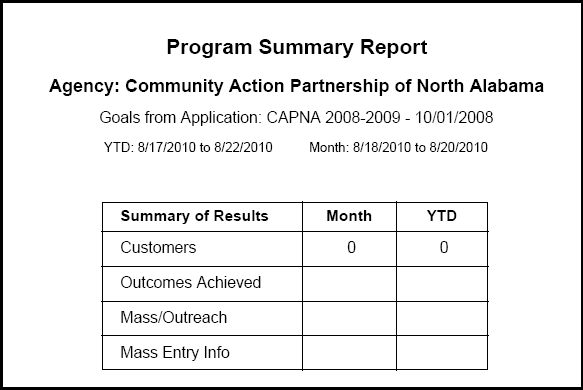
Example of a Program Summary Report. |